How to Use Payload: Fast WiFi and Online File Transfers Between Devices
Guide to Payload app: send files between phones and computers on the same WiFi, use online transfer when apart, and get gigabit-speed local transfers with encryption.
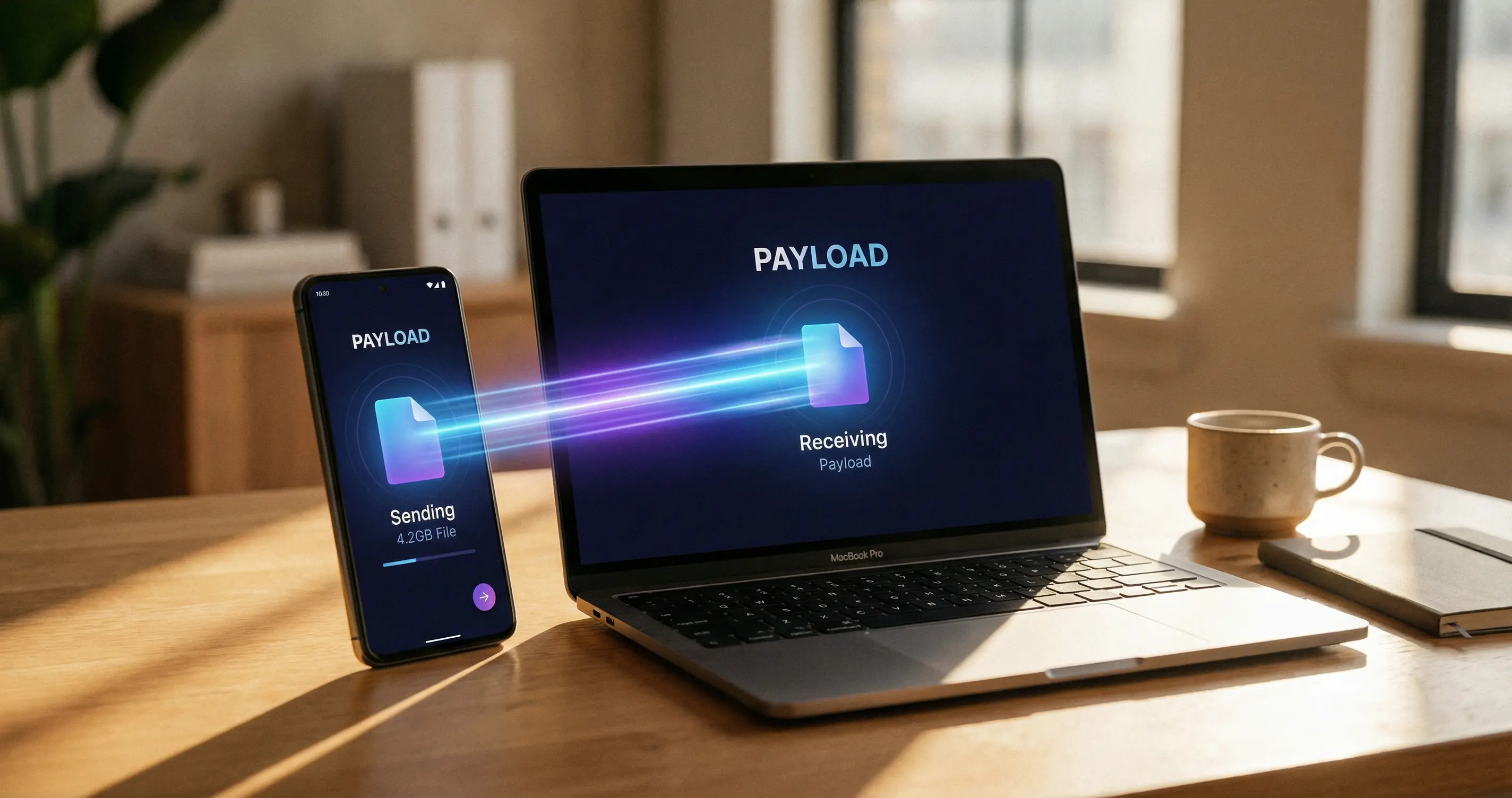
What Payload Does
Payload is a file transfer app for Windows, Mac, Linux, iOS, and Android. On the same WiFi network, devices discover each other and you drag and drop files between them with no need to email or use the cloud. Transfers are encrypted end-to-end; Payload cannot read your files. Local transfers are free and unlimited. For sending to someone else over the internet, Payload offers online transfer with a data plan (there is a free monthly allowance; recipients can receive without an account).
Installing and Opening Payload
Download Payload from payload.app for your operating system or from the App Store or Google Play for mobile. Install and open the app. Grant any requested permissions (e.g., local network, storage). On first launch, the app may ask you to name your device so you can recognize it when choosing where to send files. Ensure all devices you want to use are on the same WiFi network for local transfer.
Sending Files on the Same WiFi
Open Payload on both the sender and the receiver. Devices on the same network typically show up with a blue dot or similar indicator. On the sending device, drag and drop files or folders into the app or use paste if you have files on the clipboard. Select the destination device from the list, then start the transfer. You do not need to zip files; Payload sends them as-is. Transfers can reach gigabit speeds (e.g., 90+ MB/s on phones, 760+ Mbps in tests), so large videos or project folders transfer quickly.
Resumable Transfers
If a transfer is interrupted (e.g., WiFi drops, laptop sleeps, or you unplug a drive), Payload can resume when the connection is back. Reopen the app on both sides and retry the same transfer where possible; the app will continue from the last successful part instead of starting over. This is especially useful for very large files or unstable networks.
Online Transfers (Different Networks)
When the recipient is not on your WiFi (e.g., another city or another network), use Payload's online transfer. Choose to send via the internet; the recipient gets a link or can receive in the app. Data used for online transfer counts against your plan; there is a free monthly allowance. Recipients can download without creating a Payload account. Speeds depend on your and the recipient's internet; local WiFi is still faster when both devices are on the same network.
Mobile Tips
On phones and tablets, keep the app open during large transfers so the system does not suspend it. Allow notifications if you want alerts when a transfer finishes. You can send from phone to computer, computer to phone, or between two phones. Use the same WiFi for the best speed and to avoid using your data plan.
Security and Limits
All transfers are encrypted end-to-end. Payload's servers do not have access to file contents. There are no file size limits for local transfer; you can send very large files or whole folders. For online transfer, check the current plan for any limits or fair-use policy.
What to Do Next
Install Payload on two devices on the same WiFi and send a test file (e.g., a photo or a document). Try a large file to see resumable transfer if something interrupts it. If you often send files to someone off your network, try one online transfer to see how the link and download flow work.
Tags
Sources
Related Articles

How to Use Runway AI: Text-to-Video, Image-to-Video, and Gen-3/Gen-4
Step-by-step guide to Runway: create videos from text or images, use motion and camera controls, extend clips, and understand credit usage for Gen-3 and Gen-4.
How to Use Grammarly AI: Proofreading, Paraphrasing, and Generative Help
Guide to Grammarly's AI tools: fix grammar and tone, paraphrase and humanize text, use AI Chat and prompts on desktop and mobile, and get expert-style feedback.
How to Use Notion AI: Summarize, Draft, and Automate With Your Agent
Guide to Notion AI: summarize pages and docs, fix writing, brainstorm, and use the Notion Agent to build databases and analyze PDFs across your workspace.